

Epson Error Code 0x9A fix is often searched by users when their printer suddenly stops working without warning.
Epson printers are widely recognized for their print quality and long-term durability, yet technical issues can still occur, particularly when the device is used intensively without regular maintenance.
One of the issues frequently complained about by users is the Epson printer error code 0x9A. This error can abruptly stop the printing process and render the printer unusable.
To avoid taking the wrong action, it is important for users to understand the meaning of this error, its causes, and the appropriate and safe handling steps.
What Is Epson Printer Error Code 0x9A?
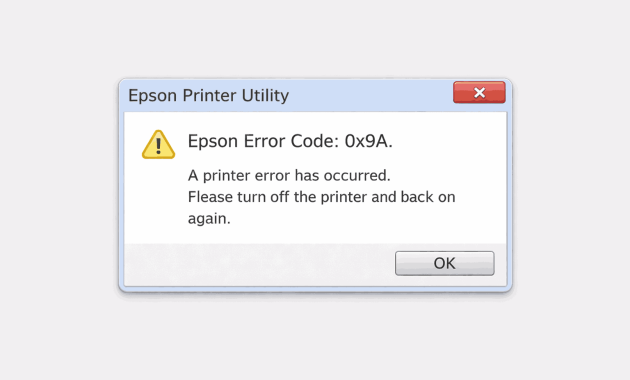

Epson printer error code 0x9A is an error code that is generally related to a mechanical malfunction in the internal parts of the printer.
When this error occurs, the printer system detects that one of the components cannot move or function normally.
As a precautionary measure, the printer automatically halts all printing activities. This is aimed at preventing more severe damage to the mechanical components inside the machine.
Why Does Epson Printer Error Code 0x9A Occur?
There are several main factors that can cause this error to appear, including:
- Paper jams or remnants of paper cuts that are not visible
- Dust and dirt buildup in the mechanical path
- Print head or carriage movement being obstructed
- Worn-out paper feed rollers
- The printer being used continuously without breaks
In many cases, error 0x9A occurs due to a combination of heavy usage and lack of routine maintenance.
When Does Error Code 0x9A Usually Appear?
This error can occur under several different conditions. Most often, the Epson printer error code 0x9A appears when the printer is first turned on or during the printing process.
Some users also experience this error after printing a large number of documents in succession.
If the error keeps appearing even after the printer has been turned off and on again, it indicates a mechanical problem that cannot be resolved with a simple restart.
Where Is the Source of the Problem?
The source of the 0x9A error is usually located inside the printer, specifically in the area of the print head movement path, rollers, and mechanical sensors.
These components operate with high precision, so even a small disturbance can cause the system to read an abnormal condition.
Paper shreds, fine dust, or dried ink that stick often become the main cause of the disruption in the movement of those components.
How to Fix Epson Printer Error Code 0x9A?
Here are the safe steps that can be taken to resolve the Epson printer error code 0x9A before taking the printer to a technician:
1. Turn Off the Printer and Unplug the Power Cable

Make sure the printer is completely off and not connected to a power source. Let it sit for 10–15 minutes so the internal system can perform a complete reset.
2. Check for Paper Jam Thoroughly
Open the printer cover and inspect the interior carefully. Not only large sheets of paper, but also small pieces that often get stuck in the corners of the paper path.
3. Clean the Printer’s Mechanical Path
Use a fine brush or a dry cloth to clean dust and dirt around the roller and print head path. Avoid using excessive liquid to prevent damaging the sensor.
4. Check the Print Head Movement

Gently slide the print head to ensure smooth movement. If it feels stuck or heavy, there is likely dirt obstructing it.
5. Make Sure There Are No Foreign Objects
Check if there are any small objects like paper clips, staples, or plastic shards that have accidentally entered the printer.
6. Restart the Printer
After all the steps have been completed, reconnect the power cable and turn on the printer. Let the printer complete the initialization process without interruption.
If the error still appears after these steps, it is likely that there is an issue with the mechanical components or sensors that requires professional handling.
Who Should Handle This Error?
Users can perform light cleaning and checks independently. However, if the Epson printer error code 0x9A appears repeatedly or is accompanied by abnormal sounds from within the printer, it is advisable to take it immediately to an experienced technician or an official Epson service center.
Disassembling a printer without the proper expertise and tools risks causing permanent damage and higher repair costs.
How to Prevent Error 0x9A from Recurring?
Prevention is the best step to ensure the printer remains durable and functions optimally. Some things that can be done include:
- Cleaning the printer regularly, especially the paper path
- Using paper according to the recommended specifications
- Not forcing the printer to print large quantities without breaks
- Placing the printer in a clean and dry environment
- Performing periodic maintenance as needed
FAQ
What is the main cause of Epson printer error code 0x9A?
The most common cause is a mechanical obstruction, such as paper jams, dust buildup, or restricted print head movement.
Can error code 0x9A be fixed at home?
Yes, as long as the issue is minor and related to dirt, paper fragments, or temporary mechanical blockage.
Does restarting the printer always fix error 0x9A?
No. Restarting only helps temporary system issues and does not resolve mechanical problems.
Is error 0x9A dangerous for the printer?
The error itself is a protective warning, but forcing the printer to operate may cause further damage.
Can using the wrong paper cause this error?
Yes. Paper that does not match the printer’s specifications can disrupt the mechanical path.
Does regular cleaning help prevent error 0x9A?
Yes. Routine cleaning keeps the internal components moving smoothly and reduces error risks.
Read More: Epson Printer Error Code 0x97 Fix Using 7 Quick Solutions!