

Epson Error Code 0xf1 – Epson printers are known as reliable printing devices for home and office needs. However, under certain conditions, users may experience technical problems such as Epson Error Code 0xf1.
This error often appears suddenly and renders the printer unusable. Therefore, it is important to understand the causes and how to fix Epson Error Code 0xf1 in a safe and proper manner.
What is Epson Error Code 0xf1?
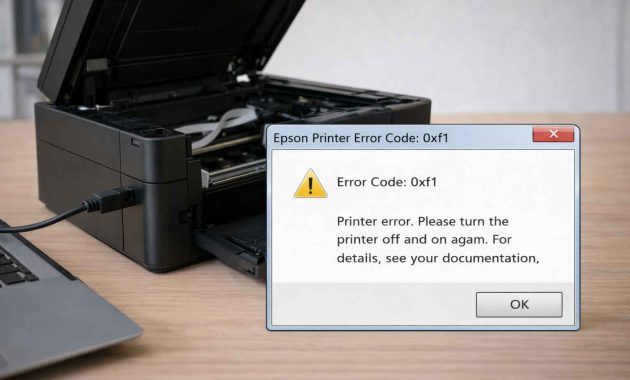

Epson Error Code 0xf1 is an error code that is generally related to mechanical or internal sensor problems in the printer. This error usually appears when the printer fails to initialize, causing the system to stop all printing activities as a form of protection
Why Does Epson Error Code 0xf1 Occur?
Some common causes of this error include:
1. Dirt, dust, or ink residue on the encoder strip
2. Paper jam or foreign object inside the printer
3. Hindered print head movement
4. Outdated or problematic printer driver
5. Internal sensor not reading properly
This problem often occurs in printers that are rarely cleaned or have been used for a long time.
When Should This Error Be Addressed Immediately?
Error Code 0xf1 should be addressed immediately if:
1. The printer cannot turn on normally
2. There is a grinding or knocking sound coming from inside the machine
3. The error reappears even after the printer has been restarted
4. If left unattended, the risk of internal component damage will increase
Where Is the Source of the Problem?
In most cases, the source of Epson Error Code 0xf1 is located inside the printer, particularly around the print head path, internal sensors and the encoder strip.
These components play a critical role in controlling print head movement and detecting its position during operation.
Because these parts are exposed to ink mist, dust and paper debris over time, even a small buildup can interfere with sensor readings.
When the printer detects abnormal movement or fails to read the encoder strip correctly, the system automatically stops and displays the error to prevent further mechanical damage.
This is why improper cleaning or forced movement of internal parts can make the problem worse rather than fix it.
Fix Epson Error Code 0xf1 Using 7 Easy Steps
The process of How to fix Epson Error Code 0xf1 should be done carefully to avoid damaging sensitive components. Below are easy and commonly recommended steps that can be performed before considering professional repair.
1. Power Down the Printer and Disconnect the Power Cable

Always start by powering off the printer completely and unplugging it from the electrical outlet. This prevents electrical shock and allows internal components to reset.
2. Open the Printer Cover and Check for Obstructions
Carefully open the printer cover and inspect the inside for paper jams, torn paper, or foreign objects such as clips or dust buildup. Remove anything that may block the print head path.
3. Clean the Encoder Strip Gently

Locate the transparent plastic strip that runs horizontally behind the print head. Using a soft, lint-free cloth slightly dampened with clean water, wipe the strip gently from one side to the other. Do not pull, bend, or use alcohol, as this can damage the strip.
4. Check Print Head Movement
With the printer still turned off, slowly slide the print head left and right to ensure it moves smoothly. Resistance or stiffness may indicate debris or mechanical obstruction that needs to be cleared.
5. Inspect for Excess Ink or Dirt

Look for ink splashes or thick dust around the carriage area. If present, clean carefully using a dry cloth. Avoid applying pressure to internal cables or sensors.
6. Reconnect Power and Restart the Printer
After cleaning, close the printer cover, reconnect the power cable, and turn the printer on. Allow it to complete the startup process without interruption.
7. Update or Reinstall the Printer Driver
Although this error is mostly mechanical, outdated or corrupted drivers can cause communication issues. Installing the latest official Epson driver can help stabilize printer operation.
If the error message continues to appear after completing these steps, the problem may involve internal sensor failure or mechanical wear that requires professional servicing.
How to Prevent the Error from Happening Again?
To reduce the risk of Epson Error Code 0xf1 appearing in the future, perform regular printer maintenance. Clean the printer periodically, use good-quality ink, and avoid placing the printer in dusty or humid environments.
Do not force paper into the tray, and always use paper types recommended by Epson. Simple preventive care can significantly extend the printer’s lifespan.
Who Should Handle This Error?
Users can safely handle basic cleaning and inspection if the issue is minor. However, if the error persists or the printer makes unusual noises, it is best to contact a professional technician.
Attempting advanced repairs without proper tools and experience may lead to permanent damage.
Conclusion
Understanding How to fix Epson Error Code 0xf1 helps users respond calmly and effectively when the error occurs.
While routine cleaning and careful inspection can resolve many cases, recurring errors often indicate deeper mechanical issues. Proper maintenance and correct handling remain the key to preventing this problem in the long term.
FAQ
Can Epson Error Code 0xf1 be fixed by users at home?
Yes, if the cause is minor, such as dirt buildup or a light paper jam.
Does resetting the printer always fix Error Code 0xf1?
No. A reset may help temporary issues, but mechanical problems usually require cleaning or repair.
Can this error occur again after being fixed?
Yes, especially if regular maintenance is not performed.
Do all Epson printers face this error risk?
Most Epson models can experience this issue, particularly after long-term use.
Does regular printer cleaning really help?
Yes. Routine cleaning keeps sensors and mechanical parts functioning properly and helps prevent recurring errors.
Read More: Epson Error Code 2000020a – How to Resolve It Fast