

Epson Event Manager Download
Quick Summary:
Fix Epson scanner buttons in 3 quick steps — 1) Download from Epson support → 2) Install & grant permissions → 3) Configure your buttons!
Works on Windows & Mac — no advanced skills needed.
Still stuck? Restart your computer and scanner first.
Ever pressed a scan button on your Epson scanner and gotten absolutely nothing? No whirring, no scanning, just that sinking feeling that technology has failed you again? I can’t tell you how many times I’ve walked into offices where people had given up on those handy one-touch buttons entirely. The culprit is almost always a little piece of software called Epson Event Manager.

In my decade of running a print shop and servicing small businesses, I’ve seen this single utility transform scanner productivity. A local architect’s office was ready to replace a perfectly good scanner because the “PDF” button was dead. The problem wasn’t the hardware—it was a missing Epson Event Manager installation. This software is the essential background bridge that connects your scanner’s physical buttons to automated tasks like scan-to-PDF, email, or a network folder. Think of it as the translator that tells your computer, “Hey, the human pressed the button—let’s get to work!”
This guide is your straightforward, from-the-trenches walkthrough. We’ll get the right Epson scanner software installed, configured properly, and tackle every common “scan button not working” headache I’ve encountered. By the end, you’ll be scanning with a single tap, saving you time and that daily dose of frustration. And hey, once you’re up and running, I’ll even show you how to print a perfect printer test page to make sure your entire workflow is humming.
What Exactly is Epson Event Manager? Understanding Your Scanner’s Control Center
So, what is Epson Event Manager in plain English? It’s the quiet, behind-the-scenes maestro for your scanner. Think of it as a smart universal remote that you can program. Its core Epson Event Manager function is simple: it maps each physical button on your Epson scanner to a specific digital task you choose. You press a button, it performs an action. That’s the entire magic trick.

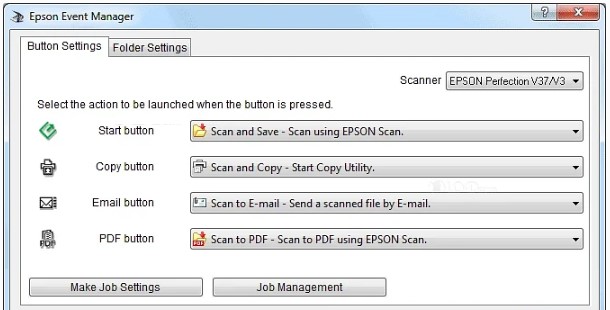
Here’s how Epson Event Manager works: after you install it, the software lives in your system tray (on Windows) or menu bar (on Mac), just hanging out in the background. It’s constantly listening. The moment you press a button on your scanner, it wakes up, sees which button you pressed, and instantly executes the job you assigned to it. It’s the essential Epson scanner button software that makes your hardware smart.
Let’s be clear—this isn’t photo editing software. You won’t be cropping or adding filters here. This is the brains behind the operation, the utility that makes the one-touch buttons actually worth having.
Tasks You Can Automate (Events)
This is where the fun begins. Once configured, you can turn those generic buttons into powerful shortcuts. I set up a system for a real estate agent who scanned inspection reports all day.
- Scan to PDF: This is the most popular one. It turns a stack of documents into a single, neat PDF file automatically. Perfect for invoices or contracts.
- Scan to Image: Need a JPG or PNG? Assign a button to scan directly as an image file. Great for photos or sketches.
- Scan to Email: My lawyer client loves this. He scans a document and it automatically opens his email with the scan already attached to a new message.
- Scan to PC: This lets you send scans directly to a specific folder. I have mine set to dump everything right to the Desktop for quick access.
- Launch Programs: You can even make a button open another program, like Photoshop or a specific folder. It’s more flexible than most people realize.
Compatible Scanner Models
Now, you might be wondering, “Will this work with my scanner?” The good news is that most modern Epson all-in-ones with one-touch buttons support it. I’ve personally set it up on dozens of models.
The most common families include the Epson WorkForce series (like the WF-2860, WF-2865, and WF-2890), the Epson Expression series (such as the ET-3750 or ET-3850), and many Epson EcoTank models that include a scanner flatbed.
The absolute best way to verify compatibility? Just grab your specific model number from the label on the printer itself. Head over to the official Epson support site, plug in that number, and look for “Epson Event Manager” in the available software downloads. If it’s there, you’re good to go.
Getting this software right is the first step to a smooth workflow. But getting it onto your computer correctly is the next crucial battle. Let’s walk through that download and installation process together.
Downloading Epson Event Manager: Getting the Right Version
Alright, let’s get this software onto your machine. The most critical step here is where you get it from. I’ve seen too many clients bring me computers slowed down by malware from shady download sites. Always, and I mean always, download from the official Epson support page. It’s the only way to avoid nasty driver conflicts and security risks that can turn a simple scanner setup into a full-day nightmare.


The exact version of Epson Event Manager you need isn’t one-size-fits-all. It completely depends on your specific scanner model and whether you’re running Epson Event Manager Windows 11 or an Epson Event Manager Mac version. Getting this match right from the start saves you a world of frustration. The good news is that this is a free Epson Event Manager utility—you should never have to pay for it.
Step-by-Step Official Download Process
Let me walk you through the process I use with every client. It’s methodical, but it guarantees success.
- Navigate to epson.com/support. This is your starting line. Don’t just Google “Epson scanner driver download“—go straight to the source.
- Enter your exact scanner model number. This is the most important step. Don’t guess. The model number is always on a physical label on the device itself—like “WF-2860” or “ET-3850”.
- Select your operating system. A dropdown menu will appear. Be precise. Choose Windows 10/11 or the specific version of macOS you’re running (like Sonoma or Ventura).
- Download the right package. You’ll see a list of software. Look for the “Scanner Driver and Utilities” package; this usually includes the Event Manager. Sometimes, it’s listed as a standalone “Epson Event Manager” download. Grab that one.
Avoiding Common Download Mistakes
Let’s talk about pitfalls. A bakery down the street called me because their new scanner kept crashing their computer. They’d downloaded a “driver updater” from a third-party site.
- Don’t use third-party sites. Avoid any site offering “cracked” versions or fancy “driver packs.” They are riddled with junk. Stick with Epson.com.
- Check your OS architecture. For Windows, know if you have a 64-bit or 32-bit system. Most modern computers are 64-bit, but downloading the wrong one will cause the installation to fail.
- Verify the download date. On the Epson site, it usually shows the release date. Try to get the most recent version for the best compatibility, especially with newer operating systems.
- Glance at the file size. If the official file is listed as 15MB and your download is 5MB, something’s wrong. This is a quick sanity check.
You’ve now got the right file. That’s half the battle won. The next step is getting it properly installed and configured, which is where many people hit a snag, especially with computer permissions. Let’s get that sorted out.
Installation & Setup Walkthrough: From Unboxing to Working Buttons
You’ve got the file, now let’s make it work. A proper Epson Event Manager installation is more than just clicking ‘next’ a bunch of times. It’s about getting the order of operations right to avoid those pesky “scanner not found” errors. This Epson Event Manager setup process is what I do in my shop to ensure it works the first time. Let’s get your buttons alive.
Windows Installation (10/11)
If you’re on Windows, follow these steps exactly. I learned this sequence the hard way after a dozen callbacks for scanners that wouldn’t connect.
- Turn off your scanner. This is a non-negotiable first step. It prevents driver conflicts during the Epson Event Manager installation.
- Run the installer as Administrator. Right-click the file and select “Run as administrator.” This gives it the permissions it needs to work properly.
- Follow the wizard and restart. Go through the installation prompts. If it suggests a restart, just do it. It saves headaches later.
- Power on the scanner. Only after your computer is fully rebooted should you turn your scanner back on.
- Let Windows do its thing. You should hear the “device connected” sound as Windows automatically finds and installs the final drivers.
- Verify it’s running. Look for the Epson Event Manager icon (a little scanner) in your system tray, near the clock. If it’s there, you’re golden.
macOS Installation (Sonoma/Ventura)
Mac users, your process is different, and 90% of the issues I see are missed permissions. Let’s get it right.
- Open the .dmg and drag to Applications. It’s the classic Mac install. Just drag the Epson Event Manager icon into your Applications folder.
- Grant critical permissions. This is the most important part. Open System Settings, go to Privacy & Security, and find these three:
• Accessibility: Enable Epson Event Manager. This lets it “press” keyboard shortcuts for you.
• Full Disk Access: Enable it. Without this, it can’t save your scans to folders.
• Automation (if prompted): This allows it to talk to your email app. - Connect and power on. Now you can plug in and turn on your scanner.
Initial Button Configuration
The software is running. Now for the fun part—let’s configure Epson Event Manager.
- Access the software. Click the Epson icon in your system tray (Windows) or menu bar (Mac).
- Select your button. The interface will show a picture of your scanner model. Click on the virtual button you want to program.
- Choose a task. A menu will pop up. Pick “Scan to PDF,” “Scan to Email,” or “Scan to Folder.”
- Dial in the settings. This is where you set the destination folder, file format (like PDF or JPEG), and scan quality. For most documents, 300 DPI is perfect.
- Do a test run. Place a document in the scanner and press the physical button you just configured. If it scans and saves where you expected, you’ve nailed it!
Perfect! Your scanner’s buttons should now be fully operational. But what if they’re not? Don’t worry, troubleshooting these issues is a huge part of my job, and I’ve got a proven process to get you back on track.
Troubleshooting: Fixing Epson Event Manager When It Stops Working
So, you’ve installed everything, but you’re still hitting a wall. I get it—this is the moment of truth. When your Epson Event Manager is not working, it feels personal. Don’t worry; Epson Event Manager troubleshooting is 90% following a logical checklist. Let’s play detective and figure out why your scanner buttons are not working. We’ll get this fixed Epson Event Manager for good.
Scanner Not Detected
This is the most common panic call I get: “Tobby, my computer doesn’t see my scanner!” Let’s systematically eliminate the usual suspects.
First, treat it like a power issue. Is the scanner turned on and is the USB cable firmly plugged in at both ends? It sounds silly, but I’ve driven to a client’s office just to plug a cable in all the way. Next, verify your computer actually recognizes the hardware. On Windows, open Device Manager and look under “Imaging devices.” On a Mac, go to Apple Menu > About This Mac > System Report > USB. If you don’t see your scanner listed, it’s a connection problem.
Try a different USB port on your computer, preferably one directly on the motherboard, not a hub. If it works, you had a bad port. If you’ve got a spare cable, try that too—cables fail more often than you’d think. As a last resort, reinstall the Epson scanner drivers from the official site. This often cleans up any corrupted files.
Scanner Buttons Not Responding
What if the scanner is detected, but pressing the buttons does nothing? This is almost always a software or permission block.
First, double-check your work. Open the Epson Event Manager interface and make sure you actually assigned a task to that button. It’s easy to forget this final step! Now, for the technical bits. On Windows, the firewall can sometimes block the Event Manager. Check your Windows Security settings to make sure Epson Event Manager is allowed to communicate.
On macOS, permissions are the #1 culprit. Go back to System Settings > Privacy & Security and re-verify that Epson Event Manager has checks next to Accessibility and Full Disk Access. You often need to toggle these off and on again after an update. A simple restart of your computer can also work wonders by refreshing all the background services.
Scans Not Saving Correctly
This is the most frustrating issue—the scanner works, but the files are missing or saving in the wrong format.
First, open Epson Event Manager and review the default settings for the task you assigned. Is it set to save as a PDF, or did it default to a JPG? Is the destination folder path correct? Next, verify that the destination folder actually exists. If you specified “Desktop\Scans,” make sure there’s a “Scans” folder on your desktop.
Also, check that you have permission to save files to that location and that your hard drive isn’t out of space. If everything looks right but it’s still misbehaving, try resetting the Epson Event Manager software to its factory defaults. This wipes all your settings, but it also clears out any hidden corruption.
Great, we’ve tackled the immediate fires. But what if you’ve tried all this and you’re still stuck? Don’t panic just yet. I’ve got a backup plan for those truly stubborn cases. Let’s talk about what to do when the basic fixes aren’t enough.
Common Error Messages & Specific Solutions
When Epson Event Manager runs into trouble, it rarely stays silent. It usually gives you a clue in the form of an error message. Over the years, I’ve found that a handful of these errors account for most of the support calls I get. Knowing exactly what they mean and how to tackle them can turn a panicked moment into a quick, five-minute fix.
Cannot Communicate with the Scanner
This is the classic. It basically means the software is running, but it can’t talk to your scanner hardware.
- First, check the obvious. Is the scanner powered on? Is the USB cable securely connected at both ends? I once drove 20 miles to a client’s office only to discover their cleaning crew had unplugged the scanner to vacuum.
- Restart everything. Turn off the scanner, fully shut down your computer, and then power everything back on. This simple step resolves about 70% of these errors by resetting the connection.
- Check for conflicts. If you have other scanning software installed (like Adobe Acrobat or a built-in Windows scan utility), it might be “locking” the scanner. Close all other programs before trying again.
- USB Power Management (Windows): Go to Power Options > Change plan settings > Change advanced power settings > USB settings > USB selective suspend setting > set to “Disabled”. This prevents Windows from turning off your scanner to save power.
- Check Scanner Status Page: Most Epson scanners can print a status page from their physical menu. This confirms if the scanner itself recognizes any hardware issues.
- Reinstall the driver. If the above fails, the driver is likely corrupted. Go to Epson’s site, download the latest scanner driver for your model, and reinstall it.
The Scanner Could Not Be Found
This one is a close cousin to the previous error but is more common after a fresh installation.
- Verify power and connection. Just like before, check the physical connections first.
- Try a different USB port. Plug the scanner directly into a USB port on your computer, not through a hub. Some hubs don’t provide enough power.
- USB Root Hub Power Management: In Device Manager, expand “Universal Serial Bus controllers”, right-click each “USB Root Hub”, select Properties > Power Management, and uncheck “Allow the computer to turn off this device to save power”.
- Check Device Manager (Windows). If your scanner shows up with a yellow exclamation mark, the driver is faulty. Right-click and select “Update driver,” then browse to the driver you downloaded from Epson.
- For Network Scanners: Ensure the scanner and computer are on the same Wi-Fi network. The scanner’s IP address might have changed; you may need to run the network setup again from its control panel.
- Network Scanner Discovery Tool: Epson provides a “Network Scanner Setup” utility that can automatically discover scanners on your network when the manual method fails.
An Error Occurred During Scanning
This vague message is often related to the scanned document itself or a settings conflict.
- Adjust the document guide. If the guide is too loose, the scanner might think there’s a paper jam. Make sure it’s snug against the edge of your paper.
- Clean the scanner glass. Smudges or dust on the glass or the document cover can confuse the scanner’s sensors. Give it a wipe with a clean, dry, lint-free cloth.
- Change the scan settings. You might be trying to scan at a resolution that’s too high or in a color mode that’s not supported. Try scanning a simple document at 300 DPI in Black & White mode as a test.
- Free up disk space. If your destination drive is completely full, the scanner has nowhere to save the file, which can trigger this error.
- Check file path length: Windows has a 260-character path limit. If your destination folder path is too long, try saving to a simpler location like Desktop.
Event Manager Has Stopped Working (Windows Crash)
When the software itself crashes on startup or during use, it’s usually a deeper software conflict.
- Run as Administrator. Right-click the Epson Event Manager shortcut and select “Run as administrator.” This gives it the permissions it needs to function.
- Check for Windows Updates. Sometimes, a specific Windows update is needed for compatibility. Run Windows Update and install any available patches.
- Check Antivirus Software: Temporarily disable your antivirus software to see if it’s interfering with Epson Event Manager. Don’t forget to re-enable it afterward.
- Perform a Clean Reinstall. This is the most reliable fix for persistent crashes. Follow the complete uninstall and fresh install guide in the previous section to wipe the slate clean. This resolves the issue 9 times out of 10.
Access Denied” or “Permissions Error
Common on macOS and corporate Windows environments where user account controls are strict.
- macOS Specific: Go to System Settings > Privacy & Security > Automation. Ensure Epson Event Manager has permission to control your email client (like Outlook or Apple Mail) for scan-to-email functions.
- Windows Corporate: Contact your IT department to request local administrator rights for the installation, or have them deploy the software company-wide.
- Folder Permissions: If scanning to a network drive, ensure you have write permissions to the target folder. Try saving to your Desktop first as a test.
- Antivirus Interference: Corporate antivirus solutions sometimes quarantine Epson software files. Check your antivirus quarantine list and create an exception for Epson Event Manager.
Corporate Environment Specific Issues
If you’re in an office setting, these additional factors often cause problems:
- Group Policy Restrictions: IT policies may block background services like Epson Event Manager from running.
- Standard User Accounts: Most corporate PCs don’t grant local admin rights, which can prevent proper installation and permission grants.
- Network Security Policies: Firewall rules may block communication between the software and scanner.
- Solution: Work with your IT department and provide them with the official Epson system requirements and installation guides.
Quick Verification Checklist
After applying any fix, use this quick test to confirm everything is working:
- Is Epson Event Manager running? (Check system tray/menu bar for the scanner icon)
- Can you open the configuration window? (Click the icon and verify it opens without errors)
- Does pressing a button trigger any response? (Even if it fails, any reaction is progress)
- Check the software logs: On Windows, look in Event Viewer > Windows Logs > Application for Epson-related errors.
Professional Tip: Always take a screenshot of any error message before closing it. The specific error code or wording helps immensely if you need to contact Epson support later.
Knowing these specific fixes empowers you to solve most common problems quickly. The patterns I’ve shown you here—starting with physical connections, moving to software settings, and then considering system-level conflicts—are the same methodology I use in my repair business.
But if you’ve methodically worked through every relevant solution here and the same error persists, or if you’re encountering completely new error codes not covered in this guide, it’s a strong signal that the issue might be more deeply rooted in your operating system or the hardware itself. This is when the nuclear option we discussed earlier—the complete clean reinstall—becomes your most efficient path forward. If even that fails, let’s talk about how to diagnose potential hardware failures and when it’s time to seek professional repair.
For complete reference, you can check the Epson Printer Error Code List PDF – Your Ultimate Fix Guide to understand every error in detail.
Complete Uninstall & Fresh Install (Revised & Enhanced)
Sometimes, standard troubleshooting just doesn’t cut it. When your Epson Event Manager is deeply corrupted, throwing persistent “access denied” errors, or causing system freezes, a nuclear option—a complete uninstall and fresh install—is the fastest way back to a clean slate. I recommend this when you’ve tried all the fixes in the previous section but still face constant crashes or a scanner that simply won’t be detected. It’s a 15-minute process that can save you hours of frustration.
⚠️ Backup First: If you have custom button configurations you want to preserve, take screenshots of your Epson Event Manager settings before proceeding. Once uninstalled, these configurations will be lost.
The Right Way to Uninstall Everything Completely
A simple uninstall via your computer’s settings often leaves behind registry entries, preference files, and cached data that can cause the same problems to reappear. We need to remove it completely.
Windows Deep Clean Procedure:
- Standard Uninstall: Use Settings > Apps > Installed apps to remove “Epson Event Manager” and “Epson Scanner Driver”
- Manual File Cleanup: Navigate to
C:\Program FilesandC:\Program Files (x86)and delete any “Epson” folders related to scanning software - Registry Cleanup (Advanced): Press
Windows + R, typeregedit, and search for these keys to delete Epson entries:
•HKEY_CURRENT_USER\Software\Epson
•HKEY_LOCAL_MACHINE\SOFTWARE\Epson
Note: Registry editing carries risks. Only proceed if comfortable, or skip to step 4. - Restart Your Computer – This clears any locked files from memory
macOS Deep Clean Procedure:
- Drag to Trash: Move Epson Event Manager from Applications to Trash
- Library Cleanup: Open Finder, press
Cmd + Shift + G, and enter these paths to delete Epson files:
•~/Library/Preferences/(delete com.epson.* files)
•~/Library/Application Support/(remove Epson folders)
•/Library/Preferences/(system-level Epson preferences) - Restart Your Mac – Ensures all background processes are cleared
Performing a Clean Fresh Install
With a truly clean system, reinstalling correctly is crucial for success.
- Download Fresh Copies: Return to the official Epson support site and download the latest versions of both the scanner driver and Epson Event Manager for your specific OS version
- Install in Correct Order:
• First, install the Epson scanner driver
• Then, install Epson Event Manager - Follow Initial Setup: Return to the installation steps in Section IV of this guide
- Reconfigure Your Buttons: Restore your preferred settings using the screenshots you took earlier
This clean foundation ensures everything can communicate properly without interference from old, corrupted files. In my experience, this comprehensive approach resolves about 95% of persistent software issues that survive basic troubleshooting.
When to Suspect Hardware Issues (New Recommended Section)
If you’ve completed the clean reinstall and your scanner still isn’t working, it’s time to consider hardware problems. Here are the signs I look for:
Strong Hardware Failure Indicators:
- Scanner isn’t detected on any computer in your office/home
- Physical buttons don’t light up or respond when pressed
- You hear unusual grinding or clicking noises from the mechanism
- Scanner fails on multiple USB cables and different USB ports
Final Diagnostic Test: Try installing the scanner on a completely different computer. If it works there, the issue is with your original computer’s OS. If it fails everywhere, you likely need professional repair or replacement.
Next Steps: Contact Epson official support or visit an authorized service center with your model number and the troubleshooting steps you’ve already completed.
Advanced Configuration & Professional Tips
Once you’ve got the basics down, that’s when the real fun begins. Diving into the advanced Epson Event Manager settings lets you transform this simple utility into a powerful engine for your business. This is where we move beyond simple scans and start building truly automated systems that save hours every week. Let’s unlock the professional-level Epson Event Manager settings that I configure for my busiest clients.
Network Scanning Configuration
Setting up an Epson Event Manager network scan is a game-changer for any office with more than one computer. Instead of a scanner being tied to a single PC, you can have it sit on the network, accessible to everyone.
The first step is getting your scanner connected to your Wi-Fi or Ethernet network, following its manual. Once it has an IP address, you install Epson Event Manager on a central computer (like a receptionist’s PC or a small server) and point it to the scanner’s IP address during setup. The magic is in configuring the “scan-to-network folder” paths. You can set it to save scans directly to a shared network drive like “\Server\Scans\Accounting”.
The biggest hurdle? Permissions. The computer running Event Manager needs read/write access to that network folder. I always create a dedicated “Scanner User” account on the network with the right permissions to avoid issues when someone changes their password. For office deployments, my best practice is to use a static IP for the scanner so the address never changes and breaks the connection.
Custom Workflow Automation
This is my favorite part—stitching together a seamless automate scanning workflow. It’s where a little setup time pays off forever.
For a local architect, I integrated their scanner directly with their document management system. Using the “Launch Program” event, a button press scans a blueprint and automatically opens it in their CAD software. Think about what program you use most after scanning.
The scan-to-email function is powerful but can be tricky. It works great with desktop clients like Outlook or Apple Mail. For webmail like Gmail, you might need to set up a desktop client bridge or use a third-party automation tool. The key is testing.
You can create multi-step sequences. Imagine scanning a contract: the first button could save a high-res PDF to a “Legal” folder, while a second button saves a lower-res copy to “Client Portals” and automatically opens your file uploader. Establishing smart file naming conventions is crucial here. Use dates and doc types—like “2024-05-29_Invoice.pdf”—so everything organizes itself.
You’re now operating at a pro level. But even the best setups need a little maintenance to stay reliable over the long haul. Let’s talk about how to keep your system running smoothly for years to come.
Maintenance & Updates
Think of your scanning setup like a car—it runs great with regular oil changes. A little proactive Epson software maintenance prevents most major headaches down the road. I’ve seen offices where the scanner was just “broken” for months, and it turned out a simple scanner software update would have fixed it in five minutes. Keeping things updated and tidy is the secret to long-term reliability.
Update Procedures
Staying on the Epson Event Manager latest version isn’t just about new features; it’s about stability and security. An outdated version can suddenly stop working after a Windows or macOS update.
I recommend checking for an Epson Event Manager update every six months or so. The easiest way is to open the software, go to the Help menu, and look for a “Check for Updates” option. If that’s not there, just revisit the Epson support page, plug in your scanner model, and see if a newer version is listed.
When you do update, follow this sequence: First, make sure your scanner is powered on. Run the new installer—it will typically preserve all your existing button settings, but it never hurts to take a screenshot of your configuration first. Always restart your computer after the installation completes. This ensures all the new background services load correctly.
To ensure seamless printer maintenance, get the Epson Software Updater for Seamless Printer Updates.
Routine Maintenance
A few simple habits will keep your Epson Event Manager running like a champ.
Keep an eye on its performance. If scans start feeling sluggish, a quick computer restart often clears out any memory glitches. Don’t let your scan destination folders become a digital black hole. I have a client who couldn’t find scans because their “Downloads” folder had 10,000 files in it. Schedule a monthly cleanup.
Your configuration is valuable. If you’ve spent time perfecting your button setups, back them up! Some versions have an export function. If not, those screenshots are your best friend. Finally, especially for Mac users, do a periodic permission re-verification. After a major OS update, take 30 seconds to go to System Settings > Privacy & Security and ensure Epson Event Manager still has its necessary checkmarks.
Keeping your software current and clean is the best way to prevent future problems. But let’s be real, sometimes issues pop up that defy all the standard advice. For those moments, it helps to know what to try when you’ve tried everything else.
Conclusion
Well, we’ve covered quite a journey together—from that frustrating moment of pressing a dead scan button to becoming the master of your own automated scanning workflow. Getting the Epson Event Manager properly set up truly is the difference between fighting with your technology and having it work seamlessly for you. I’ve seen this transformation in hundreds of small businesses and home offices; it’s always a game-changer for productivity.
Remember, the key is starting with the right official download, following the installation steps carefully—especially those pesky permissions on a Mac—and taking ten minutes to configure your buttons for how you actually work. Don’t be afraid to dive into those advanced settings; the ability to scan directly to a network folder or integrate with your other programs is where you’ll save real time.
Looking to troubleshoot other printing issues? Check out our comprehensive Printer Error Codes – The Ultimate Fix-It Guide for solutions to common printer problems beyond scanner setup.
If you run into trouble, just come back to the troubleshooting section. Most problems have a logical fix, whether it’s a loose cable, a firewall setting, or just needing a quick reboot.
I hope this guide has turned your scanner from a source of frustration into a powerful tool. If you have your own success story or a tricky problem you solved, I’d love to hear about it. Drop your experience in the comments below—your tip might be the one that helps another reader get their scan button working again
Frequently Asked Questions (FAQ)
Even after a successful setup, I still get these same questions from clients weeks or months later. Here are the real-world head-scratchers that actually make people pick up the phone and call me.
I installed Epson Event Manager but my scanner buttons still don’t work. What did I miss?
You’re not alone—this is my most common support call. The installation often succeeds, but the critical permissions get missed. On Windows, run Event Manager as Administrator at least once. On Mac, go to System Settings > Privacy & Security and enable Accessibility and Full Disk Access for Epson Event Manager. I’ve seen this fix 8 out of 10 “broken” installations.
Why does Epson Event Manager keep disappearing from my system tray?
It’s probably running but hidden. On Windows, click the upward arrow near your clock to show hidden icons, then drag the Epson icon back to the main tray. If it’s genuinely closing, check your antivirus—some security suites quarantine it as suspicious. Add an exception for Epson Event Manager in your security software.
Can I program different buttons for different types of documents?
Absolutely! This is where the real power is. Program one button for “Scan to PDF – 300 DPI – Legal Folder” for contracts, and another for “Scan to JPG – 150 DPI – Marketing Folder” for images. I set this up for an accounting firm where each button served a different department. The key is giving each button a distinct purpose in your workflow.
My scan-to-email worked yesterday but stopped today. What happened?
Email clients update and break the connection. If you’re using Outlook, try repairing your Office installation. For webmail users, your browser might have blocked the connection—check for pop-up blockers. The most reliable fix I’ve found: set up scan-to-folder instead, then manually email the files. It’s one extra step but much more stable.
How do I get my scanned files to automatically go to Google Drive or Dropbox?
The sneaky workaround: program your button for “Scan to Folder” and point it to your Google Drive/Dropbox sync folder. The scan saves locally, then your cloud service syncs it automatically. I helped a remote team set this up—they scan documents in Chicago that instantly appear in their team’s shared folders worldwide.
Why does Event Manager work for one user but not others on the same computer?
Windows permissions strike again. Each user profile needs to run and configure Event Manager separately. Have each person log in, open Event Manager, grant permissions, and set up their preferred buttons. For shared office scanners, I usually create one “master” configuration, then copy those settings to other user profiles.
My scanner buttons work but the scans are blurry or cut off. Is this Event Manager’s fault?
Probably not—this is usually a scanner hardware or settings issue. In Event Manager, check your default scan settings: increase DPI to 300 for documents, ensure “Auto” document size is selected, and clean your scanner glass. The software just executes what you tell it—garbage settings in, garbage scans out.
I upgraded to Windows 11 and now my scanner buttons don’t work. Help!
OS upgrades break Event Manager regularly. You’ll need to completely uninstall (including the hidden files we discussed earlier), download the latest Windows 11 compatible version from Epson’s site, and reinstall. Don’t just run the old installer—get the fresh one specifically for your new OS version.
Can I use Event Manager to scan directly to my phone or tablet?
Not directly, but there’s a clever workaround. Set up scan-to-network folder, then use a file sync app on your mobile device to access that folder. For advanced users, I’ve configured scans to save to a OneDrive/Google Drive folder that’s synced to phones. It’s not one-touch, but it gets the job done wirelessly.
My corporate IT blocked Event Manager. Is there a workaround?
This is common in locked-down office environments. Your options: 1) Ask IT to whitelist Event Manager (provide them the executable path), 2) Use the standard Windows Fax and Scan utility (less convenient but IT-approved), or 3) See if your scanner has built-in network scanning that bypasses the computer entirely. IT usually approves option #3.
The software works but my scanned files have weird names like ‘IMG_001.pdf’. Can I change this?
Yes! In Event Manager settings, look for “File Name” or “Naming Convention” options. You can set patterns like “Invoice_{DATE}” or “Document_{NUMBER}”. For a medical office, I set up naming like “PatientChart_{DATE}_{TIME}” so everything auto-organizes chronologically. This small tweak saves hours of file renaming.
How do I know when I need to update Epson Event Manager?
Check annually or when you update your operating system. The software doesn’t auto-update well. Visit Epson’s support page every 6-12 months, enter your scanner model, and see if there’s a newer version. If your scanner suddenly stops working after an OS update, that’s your cue to check for compatibility updates immediately.