

How to fix a paper jam in printer doesn’t have to be tricky or require technical expertise. This article shows simple, step-by-step methods anyone can follow to safely remove jammed paper, inspect rollers, and get the printer working again.
Along the way, it also shares common mistakes to avoid, preventive tips to reduce future jams, and advice on handling issues that may need extra care. Whether your printer is a Canon, HP, Epson, Brother, or Samsung, these practical tips will help you solve jams quickly and keep your device running smoothly without costly repairs.
What Is a Paper Jam and What Causes It?
Printer paper jams happen when a sheet fails to move smooethly through the paper path. This may occur due to improper paper alignment, overloaded trays, low quality or curled paper, debris buildup, worn rollers, or sensor issues.
Many printers trigger error messages that guide you to the jam location but sometimes visible checks are still necessary. Anyone who knows how to fix a paper jam in printer will tell you that identifying the cause reduces downtime and prevents repeat jams.
Step by Step on How to Fix a Paper Jam in Printer
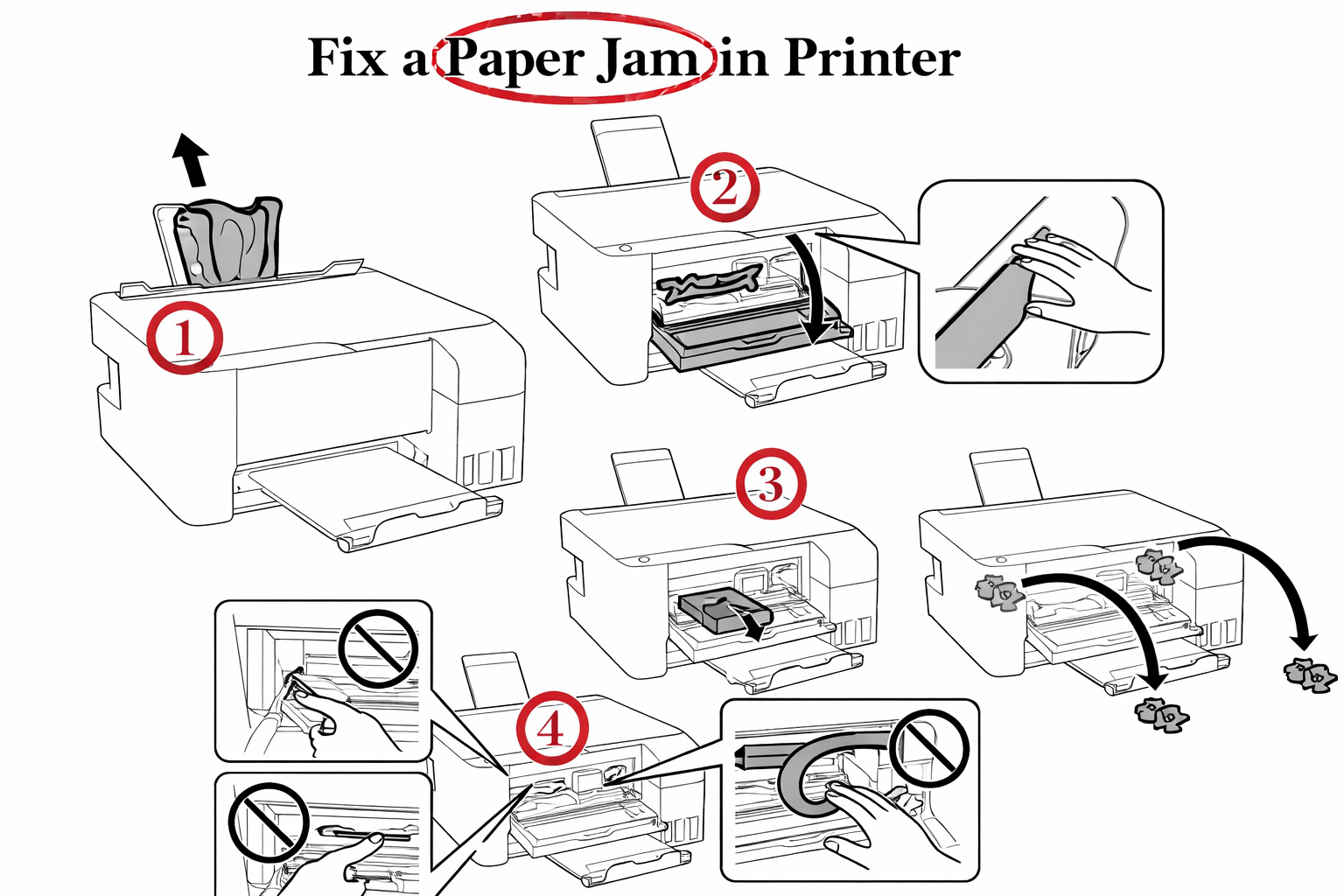

Before attempting to remove jammed paper, always power off and unplug the printer. Modern machines can reposition components automatically if they detect motion, which could damage internal parts or cause injury.
Wait a few minutes after shutting down to let warm components cool. These initial steps are essential to safely learn how to fix a paper jam in printer without harming the device.
1. Turn Off and Disconnect
Ensure the printer is completely powered down and unplugged. This stops motors and prevents burns from hot laser fuser units. Unplugging also clears any residual power that might move components during handling
2. Open All Accessible Areas
Open the front cover, rear panel, paper tray, and any top scanning unit (if applicable). These are the most common jam points. Using your manual or onscreen prompts helps locate precisely where the paper is stuck.
3. Remove the Jammed Paper Gently
Hold the stuck paper near the leading edge and pull in the same direction that paper normally travels. Avoid sharp jerks or pulling in reverse unless specified. This prevents paper from tearing and leaving fragments inside.
4. Inspect Rollers and Paper Path
With the jam cleared, inspect rollers and the entire paper path. Dust and debris on rollers degrade traction and cause future jams. Clean gently with a lint-free cloth slightly dampened with water.
5. Reassemble and Test
Once clear, close panels, reconnect power, and run a test print. Some printers include built-in diagnostics or display notifications confirming jam resolution.
Brand Specific Jam Solutions Tips
Different printer brands often have unique design features and access points where paper jams commonly occur. Below are practical tips on how to fix a paper jam in printer specific to major brands:
1. Canon Printers
Canon models like the PIXMA or MAXIFY series often require opening the top cover to access the print head area.
Gently lift the front cover and move the carriage if possible to reach any stuck paper. If your Canon model has a rear tray access panel, open it too and remove jammed sheets slowly without tearing.
2. HP Printers
HP DeskJet, OfficeJet, or LaserJet printers commonly display messages on the control panel indicating the jam location. Start by clearing the input and output trays, then open the front cartridge access door.
Pull paper along the paper path direction and inspect beneath the cartridges if necessary. Ensuring the paper tray is properly aligned reduces recurring jams.
3. Epson Printers
Epson inkjet models such as the L210 or WorkForce series often experience jams due to paper overloading or incorrect paper size. Turn off the printer, open the main cover, locate the stuck paper, and pull it toward you slowly.
Check that the paper is loaded correctly and the guides are snug to avoid friction.
4. Brother Printers
Brother laser and inkjet units like the MFC or HL series allow jam clearing through multiple panels. Pull out the paper tray and gently remove any visible paper.
Then open the rear access cover or bottom cleanout door if available, and carefully remove remaining sheets. This brand often provides clear eject paths when panels are fully opened.
5. Samsung Printers
Samsung models, especially multifunction laser printers, require removing the toner cartridge to access paper jams near the fuser area.
Pull paper slowly following its travel direction to avoid tearing. Always let the printer cool before touching internal parts, especially near the fuser unit.
Prevention Techniques
Preventing paper jams is more effective than fixing them. Always use paper that meets the printer’s specifications and store it flat in a dry environment, as moisture can cause sheets to stick together and misfeed.


Before loading, fan the paper stack and adjust the paper guides so they fit snugly without bending the sheets, while avoiding overloading the tray. Regular maintenance also plays a key role, cleaning the rollers and paper path at least once a month helps prevent dust buildup that can lead to slipping and misalignment.
Common Mistakes to Avoid
Certain mistakes when fixing a paper jam can make the problem worse. Forcing the paper out too quickly or in the wrong direction may tear it and leave fragments inside the printer.
Using sharp or metal tools should be avoided because they can damage internal sensors and roller surfaces. Additionally, ignoring printer error messages is a common oversight, as these codes often point directly to the jam location and should guide your inspection.
Indicators of Deeper Issues
If paper jams continue to occur despite proper clearing and preventive measures, the issue may indicate deeper mechanical problems.
Common causes include worn rollers that have become too smooth to grip paper properly, misaligned components along the paper path, or faulty sensors and carriage obstructions.
In such situations, internal hardware support is often required, and a qualified technician can accurately diagnose the problem and replace any damaged parts if necessary.
FAQ About How to Fix a Paper Jam in Printer
1. Why does my printer still show a paper jam after clearing visible paper?
Small pieces of paper can remain deep in the paper path and trigger sensors. Check every access panel with a light and remove all fragments.
2. Can pulling paper backward damage my printer?
Always pull in the direction of paper travel unless the manual states otherwise. Backward pulling often damages rollers or sensors.
3. Is cleaning rollers really necessary?
Yes. Dirt on rollers reduces grip and increases misfeed likelihood. Light cleaning extends printer life and prevents future jams.
4. What should I do if a paper jam error remains after clearing?
Perform a full power reset: unplug printer, wait a minute, then plug it back and restart. If error persists, inspect sensors and contact support.
5. How can I avoid paper jams when printing specialty media?
Use manual feed trays and adjust thickness settings. Specialty paper like cardstock often requires slower feeding and specific paths to prevent jams.
Conclusion
Knowing how to fix a paper jam in a printer helps restore printing quickly and prevents hardware damage.
By powering off the printer, opening all access panels, removing jammed paper gently in the correct direction, inspecting rollers, and testing the printer afterward, most paper jams can be resolved safely without professional repair.
Consistent preventive care further reduces repeat issues and ensures smooth printer performance.
Read More: How to Get Your Printer Back Online in 3 Quick Steps